Bredo / Guides / Into Final Cut or Premiere
How to get footage from a catalogue into Final Cut Pro or Premiere
Send an FCPXML file rather than the clips themselves. It points the editor at the originals where they already sit, so nothing is copied or renamed, and it carries the things a folder of files cannot: the timecode each clip starts at, which takes you kept, and any labels you or your catalogue attached. Final Cut Pro opens one directly, DaVinci Resolve reads it through File → Import → Timeline, and Premiere Pro takes it through File → Import.
Why dragging files into a bin loses the useful part
Dragging a folder into an editor moves the pictures and nothing else. Everything you knew about those clips a moment earlier, which ones were the good takes, who is in them, what was said, which shoot they came from, stays behind in whatever app you were looking at them in. The editor gets a bin of camera filenames and you start the sorting work again from scratch.
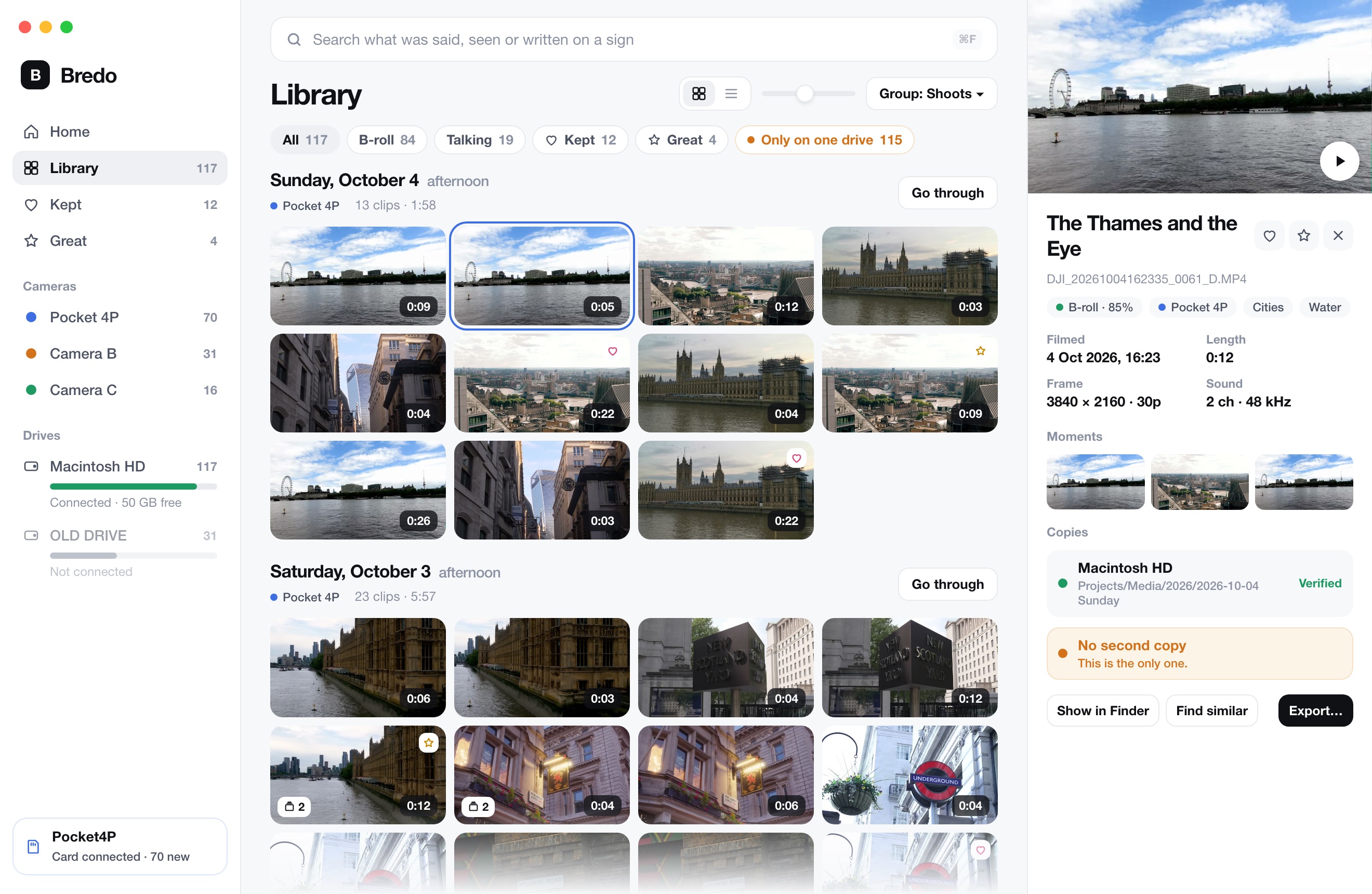
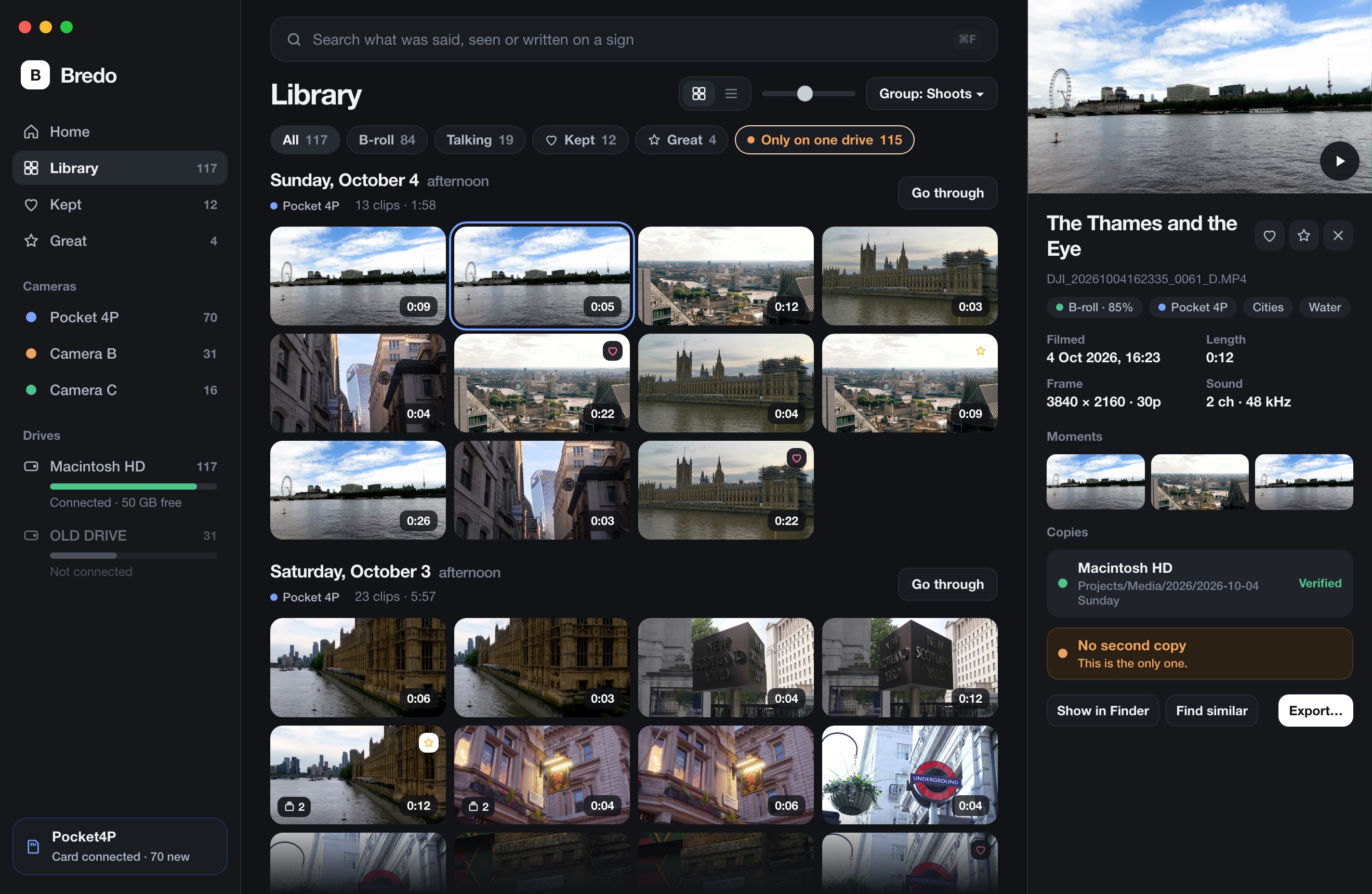
An interchange file carries that context across. Keywords arrive as keywords, and the takes you kept arrive flagged as favourites. It is the difference between handing an editor a box of tapes and handing them a box of tapes with the labels still on.
Leave the media where it is
The single most useful habit here is refusing to let the editor make its own copy. In Final Cut's import window, choose to leave files in place rather than copy them into the library. In Premiere, importing never copies by default, but Project Manager will if you ask it to, so do not ask unless you are deliberately consolidating for delivery.
The reason is arithmetic. A copy inside a library bundle is a second copy of every clip that your catalogue does not know about, on a drive you did not plan for, that will be out of date the moment anything changes. One clip in one place, referenced by as many projects as you like, is the arrangement that stays true.
Timecode is the part that breaks
If clips land in the editor stacked at the start of the timeline, or refuse to sync against separately recorded sound, the timecode was dropped somewhere between the catalogue and the editor. A file with a timecode track has a real start time, and it is what both multi-camera sync and audio sync line up against. A clip exported as starting at zero cannot be synced to anything.
Check it before you cut. Both Final Cut and Premiere can show a start timecode column in the browser or project panel. If every clip reads 00:00:00:00 and you know the camera was recording timecode, go back and fix the export rather than syncing by hand.
A selection, sent out with everything Bredo worked out
Pick clips in Bredo and choose Export for Final Cut Pro or Resolve… or Export for Premiere Pro…. The originals are referenced where they are. Kept clips arrive as favourites in Final Cut and Resolve, marked good in Premiere, and where a search matched becomes a marker on the clip.
What to expect in each editor
- Final Cut Pro. Opens an FCPXML directly and builds an event from it. Keywords become keyword collections, and favourites show up under the Favourites filter in the browser.
- DaVinci Resolve. File → Import → Timeline. Resolve reads the same file and brings in the clips with their metadata, which is why one export can serve both apps.
- Premiere Pro. File → Import. A bin of the clips arrives along with a sequence of them, which is handy when the selection came out of a search and you want to see the matching moments in order.
Sound, stills and the things that arrive wrong
Two problems account for most of the mess after an import. The first is audio channels: a drone clip filmed silent should not arrive with an empty stereo track to delete, and a four-track field recording should not arrive as a pair. An export that describes the sound each file actually has saves an hour of tidying on a big selection.
The second is stills. A photograph has no duration of its own, so something has to decide how long it sits on a timeline. If an export does not set that length, photographs can arrive as single frames or not at all.
When the editor cannot find the files
Offline media after an import almost always means the drive is not mounted under the name the export recorded, usually because macOS appended a number to the volume name when the drive was plugged in twice. Unmount the duplicate, plug the drive back in once so it mounts under its real name, and the links resolve. This is one more reason for giving each drive a permanent name.
If the footage genuinely moved, relink in the editor and then make sure your catalogue learns the new location too, or the next export will point at the old one. Finding footage you shot years ago covers the searching side of the same problem.
Questions
Should I let Final Cut Pro copy media into its library?
Usually not. Leaving media in place keeps one copy of each clip, on the drive you catalogued, rather than a second copy inside a library bundle that your catalogue knows nothing about. In the import window choose to leave files in place, and keep the library on your internal drive while the media stays on the footage drive.
Why do my clips not line up with the separately recorded sound?
Almost always because the clips arrived in the editor starting at zero instead of at their recorded timecode. A file that carries a timecode track has a real start time, and an interchange file that drops it leaves every clip stacked at the head of the timeline with nothing to sync against. Check the timecode column in the editor before you try to sync.