Bredo / Guides / Organising footage on a Mac
How to organise video footage on a Mac
Keep everything you shoot in one dated tree on one drive, describe footage at the level of a shoot rather than a file, and never rename what the camera wrote. That is the whole system, and it takes about five minutes at the end of a shoot day. Everything below is how to set it up so it still works in ten years, when you are on your fourth drive and cannot remember what you called anything.
Give footage one home before you design a folder structure
Most people's footage problem is not a naming problem. It is that the footage is in eleven places: the Desktop, a Downloads folder, two SD cards still in the drawer, an old iMac, a drive labelled BACKUP that contains the only copy of something. No folder scheme fixes that. Pick one drive to be the place footage lives, write its name on it in marker, and make everything else a copy of part of it.
A reasonable starting point for one person is a single external SSD or a small RAID for current work, with a second drive that receives a copy of the same tree. Internal storage fills up and gets wiped when a Mac is replaced, which makes it the worst place for the only copy of anything.
A folder structure for video footage that survives ten years
Put the date first, because dates are the one piece of information every camera agrees on and nobody has to invent:
Footage/
  2026/
    2026-09-14 Harbour walk/
      A7IV_A001/
      DJI_card2/
      audio/
    2026-09-21 Nordal interview/
Three rules make this hold up. The date goes in YYYY-MM-DD order so that sorting by name
sorts by time. The shoot name is short, human and written once. Each card keeps its own folder
underneath, so that if two cameras both wrote C0001.MP4 neither overwrites the
other.
Resist the urge to add a layer for client, camera or format. Every layer you add is a decision you have to make again at two in the morning with a card reader in your hand, and the wrong guess is what turns a tree into a maze. Client and camera are things to search for later, not things to carve a disk into.
Leave the camera's file names alone
Renaming original media feels like organising and is close to the opposite. The camera's name is the one thing that ties a file to the camera report, to the sound recordist's notes, to the slate, and to any record made when the card was copied. Break that link and you cannot answer later questions about where a file came from.
Describe the shoot in the folder name instead. If you need per-clip descriptions, they belong in a catalogue or a plain text file next to the footage, not in the filename. This also saves you the hours renaming would cost, which matters because the filing system you actually keep doing is better than the ideal one you abandon in March.
Or let the filing happen as the footage arrives
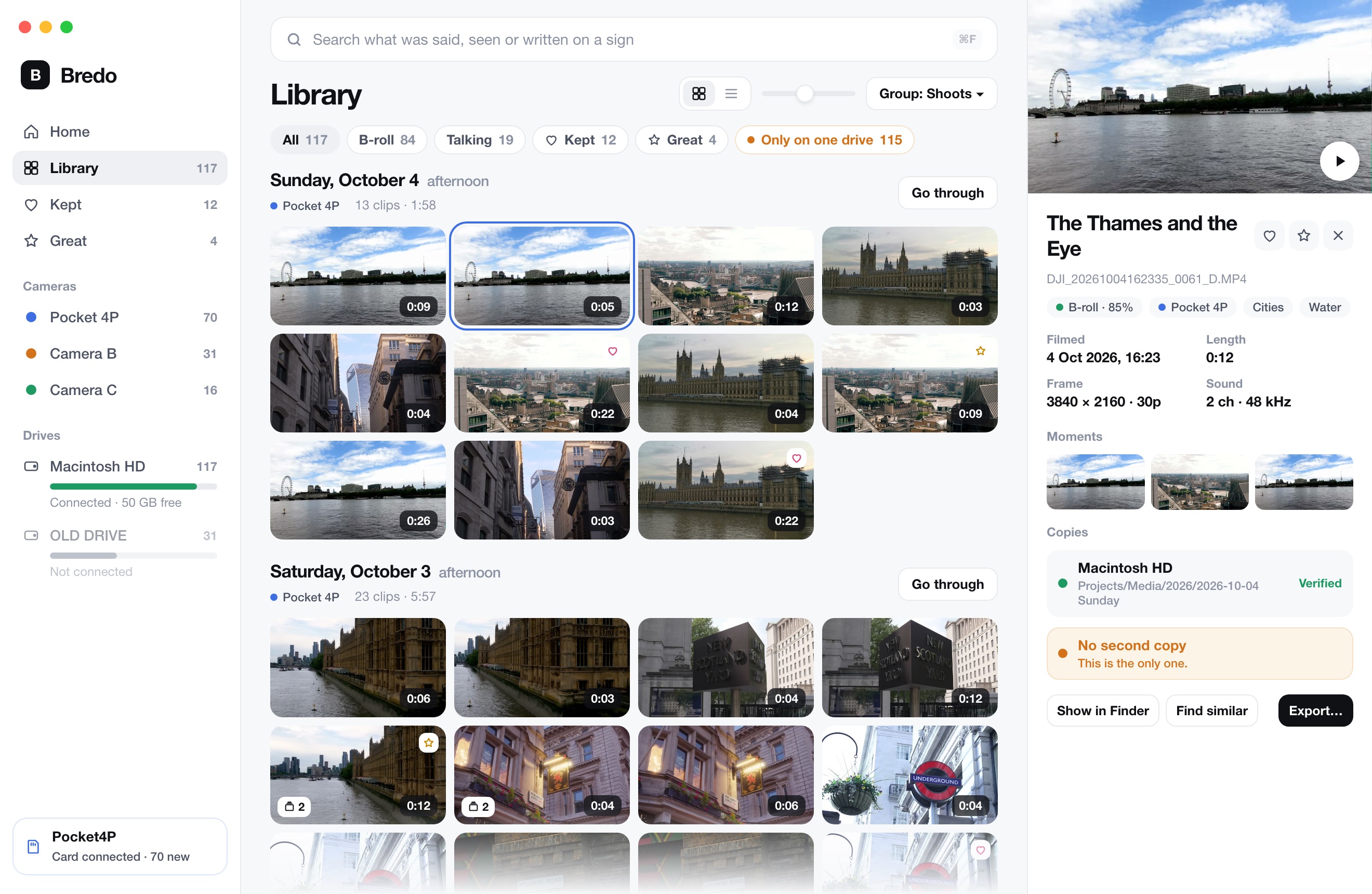
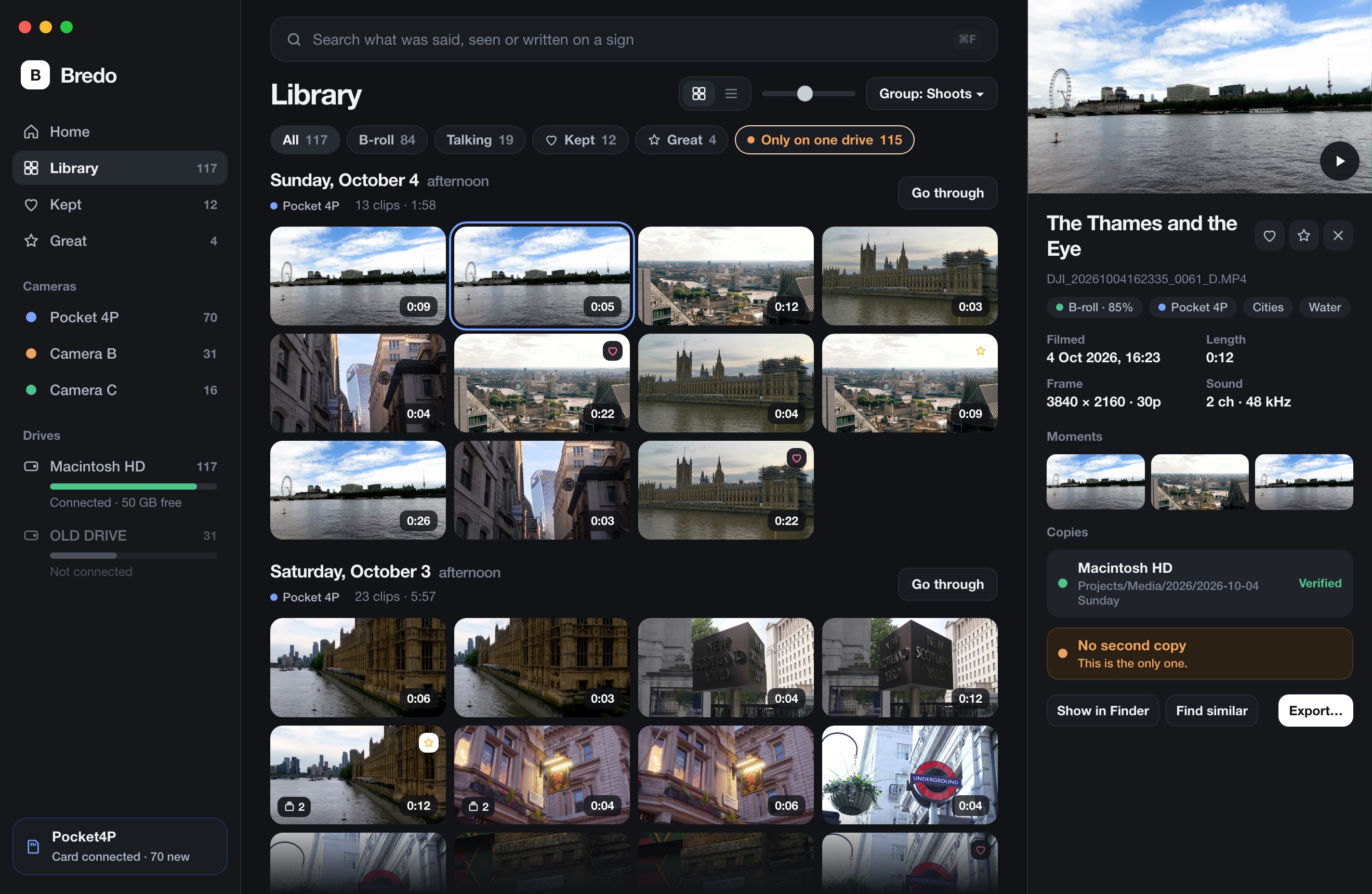
Bredo reads the date, camera, reel and timecode out of each file as it copies, then puts the clip where it belongs without you naming a folder. Clips shot in the same stretch become one shoot you can rename once.
The five minutes at the end of a shoot day
Filing fails at the end of long days, so keep the end-of-day job short enough to survive one. Copy each card into its own folder under a dated shoot folder. Check the copy before the card goes back in the bag. Type the shoot name. Then stop, because anything more ambitious will not happen twice.
Selecting your best takes, tagging people, writing notes: all of that is real work with real value, and all of it can wait for a morning when you are not tired. What cannot wait is getting the footage off the card onto at least two drives, because that is the only window in which losing it is still possible.
Keep a list of what is on each drive
A dated tree tells you where a clip is once you have the right drive plugged in. It says
nothing about which of your six drives that is. The cheapest fix is a plain text file: plug each
drive in, run ls two levels deep, and save the output somewhere you will find it.
ls -1 /Volumes/FOOTAGE_03/Footage/*/ > ~/Documents/drive-FOOTAGE_03.txtIt is crude and it works. A catalogue app does the same job properly, with thumbnails and searchable metadata, and is worth it once the text files start disagreeing with each other. Either way, the point is that you can answer "which drive is the harbour shoot on?" without hunting through a drawer. Cataloguing external drives goes into how to do that part properly.
What to do with the mess you already have
Do not reorganise ten years of footage in one weekend. Start the new system today for new work, so the pile stops growing. Then, when you have an evening, take one old drive at a time and move its contents into the dated tree, oldest first. File dates give you the year and often the day, so most of the sorting can be mechanical.
Anything whose date is genuinely unknown goes in a folder called undated rather
than a folder called misc. The difference matters: undated is a
question you can answer later, and misc is where footage goes to be forgotten. If
you mostly need to find specific old shots rather than tidy everything,
finding footage you shot years ago covers the
search side.
Questions
Should I sort footage into folders by project or by date?
By date, with projects layered on top as collections or tags. A clip has exactly one shooting date and that date never changes, so a dated tree can hold everything you own without a decision. Projects change names, merge, get cancelled and reuse each other's footage, which makes them a bad thing to carve a disk into.
Is it worth renaming files to something descriptive?
No. Renaming breaks the link between the file and the camera report, the sound recordist's notes and any copy report made when the card came in, and it takes hours you will not spend twice. Describe the shoot at folder level, and let a catalogue hold the descriptions of individual clips.